



Acrobits Softphone SIP Settings for VoIP Configuration
The Acrobits Softphone is the leading SIP VoIP phone for the iPhone, iPod Touch and iPad and Android phones. With great features such as Push Notifications, Bluetooth Support and in-app access to your phone contacts, the Softphone is the solution for SIP users on iPhone and Android phones.
You can download Acrobits for iPhone at iTunes App Store. or for Android phones at Android Market.


Here you can find Acrobits SIP settings and voip setup configuration guide with Australian Phone Company.
STEP 1
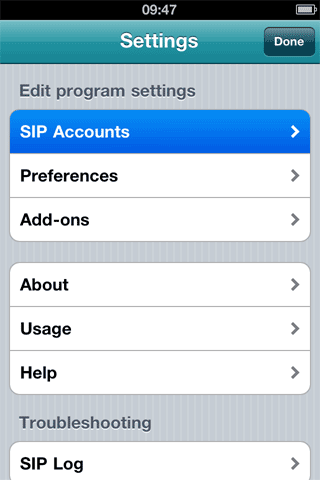
To add Australian Phone service click on SETTINGS, navigate between the options and choose "SIP Accounts"
STEP 2
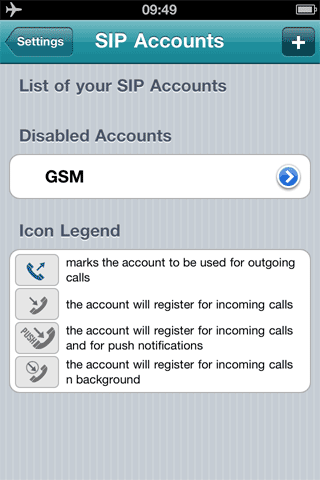
When the following screen appears choose what it the most appropriate for you. Outgoinng calls - if you need to make time to time outgoing calls only. Register for incming calls - if you need to receive incoming calls, but only when apps is active. Register for incoming calls in backgound - receive incoming calls at any time, but this mode drains batarey additionaly.
STEP 3
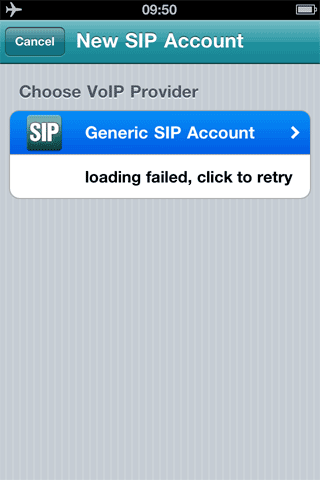
When the following screen appears; choose "Generic SIP account"
STEP 4
Enter the following for SIP account details:
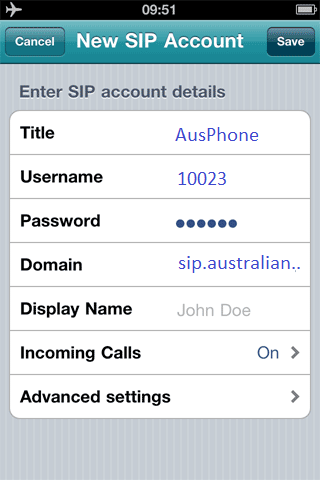
- Enter next data:
- Check your Device credentials inside MY ACCOUNT > Personal details > Devices:
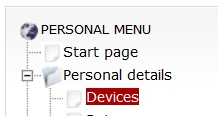
- Check your Device credentials inside MY ACCOUNT > Personal details > Devices:
- Title: AusPhone
- Username: Device username (10023 in example) from MY ACCOUNT > Personal details > Devices
- Domain: sip.australianphone.com.au
- Password: your password from MY ACCOUNT > Personal details > Devices

- Tap "Done"
STEP 5
Once Acrobits is registered to Australian Phone you will be taken to the keypad.
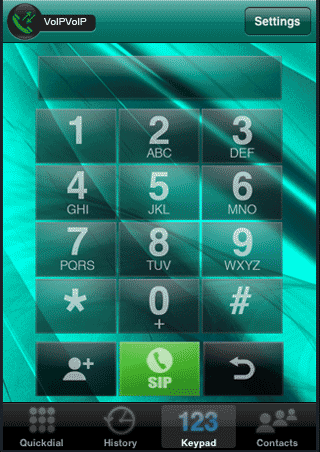
- Click "Dial" and make a test call to 09002 free number to check your sound.